
7.9. Boot manager#
In Nubus for UCS, GRUB serves as the boot manager. GRUB provides a menu where you can select which Linux kernel to boot. It can also access file systems directly and load an alternative kernel if the primary kernel fails to boot, so you can recover without external media. See Fig. 7.5 for an example of the GRUB menu interface.
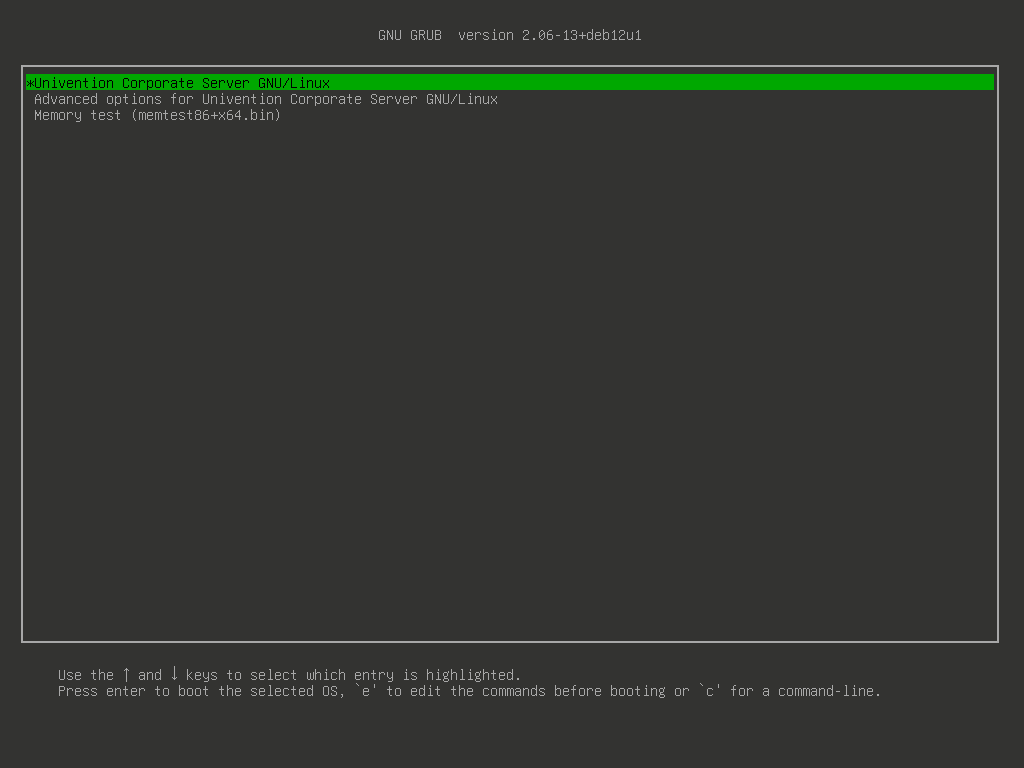
Fig. 7.5 GRUB boot manager menu#
See also
- GRUB
for the documentation of GRUB.
7.9.1. Boot loading process#
GRUB loads in two stages. Your system stores the first stage in the firmware boot area. This is either the Master Boot Record (BIOS) or the EFI System Partition (UEFI). The first stage then loads the second stage, which handles the boot menu and kernel loading. See the Kernel selection section for information on how to interact with the boot menu during startup.
7.9.2. Kernel selection#
GRUB stores kernel selection options in the file /boot/grub/grub.cfg.
GRUB automatically generates this file from your system configuration and kernel packages,
so don’t edit it manually.
The boot menu automatically shows all installed kernel packages.
During the boot process, GRUB displays a menu with the available kernel options. GRUB selects the first kernel by default. Use the arrow keys to navigate between options. Press Enter to boot the selected kernel. If you don’t select a kernel within 5 seconds, GRUB automatically boots the default kernel. You can customize this timeout in the Configuration section.
You can start the memory test program Memtest86+x64.bin by selecting the option Memory test from the boot menu. Use this to diagnose potential memory issues if you experience system instability or crashes. If Memtest86+x64.bin detects errors, your system likely has faulty RAM that needs replacement.
7.9.3. Configuration#
To configure GRUB, you need root privileges. You can configure GRUB using the command line or the Management UI.
By default, you have five seconds to select a kernel to boot.
You can customize this delay using the UCR variable grub/timeout.
For available timeout options and their behavior,
refer to the grub/timeout variable documentation.
By default, the screen displays at 800x600 pixels with 16-bit color depth.
You can change this resolution using the UCR variable grub/gfxmode.
You can only use resolutions that your system’s VESA BIOS supports.
Before finalizing resolution changes,
test them carefully
and ensure you can access the system in recovery mode if needed.
The format for specifying a resolution is HORIZONTALxVERTICAL@COLORDEPTHBIT, for example: 1024x768@16.
For available VESA modes, see VESA BIOS Extensions.
You can pass kernel options to the Linux kernel with the UCR variable grub/append.
Common kernel options include serial console parameters
such as console=ttyS0,
ACPI settings such as noacpi,
and memory management options.
For the kernel command-line parameters,
see The kernel’s command-line parameters.
You can deactivate the splash screen—the visual representation of the boot process—by setting the UCR variable grub/bootsplash to nosplash.