
6.6. User activation for apps#
This section explains how to activate and deactivate users or groups for apps available in the App Center. Some apps offer app-specific settings per user if the app integrates with identity management in Nubus for UCS.
Note
Before you activate users or groups for an app, verify the following:
The app supports user activation.
You have installed the app in your Nubus for UCS environment.
See also
- Univention App Center
for information about the App Center.
- Users module
in Nubus Manual 1.x [3] for information about the Users management module in the Management UI.
6.6.1. Activate a user or a group for an app#
The Management UI stores the activation status in the user or the group object in the LDAP directory service.
To activate a users or groups for an app, follow these steps.
For apps that activate on a per-user basis.
Open the Users management module in the Management UI.
Open the user account you want to activate.
Go to the Apps tab.
Select the checkbox next to the app logo. This activates the user for the app.
For example, see Fig. 6.1.
If the app offers specific settings, configure them in the app’s settings tab.
Save the user account.
For group based apps, add the user to the user group.
For apps that activate on a per-group basis.
Open the Groups management module in the Management UI.
Open the group you want to activate.
Go to the Apps tab.
Select the checkbox next to the app logo. This activates the user for the app.
For example, see Fig. 6.1.
If the app offers specific settings, configure them in the app’s settings tab.
Save the group.
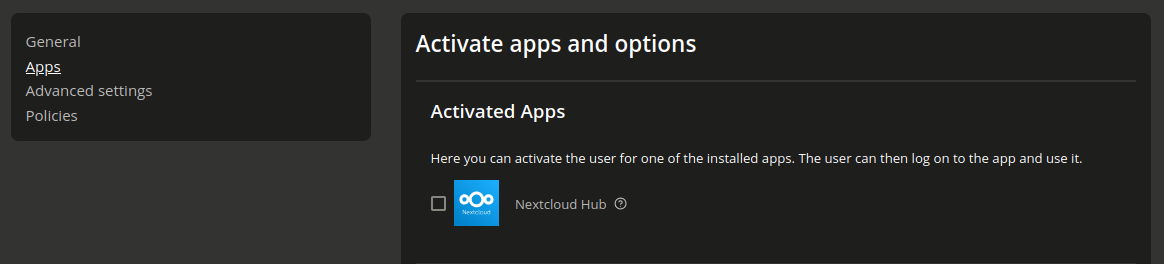
Fig. 6.1 Group activation for installed apps#
6.6.2. Deactivate a user or a group for an app#
To deactivate a user for an app, follow these steps.
For apps that activate on a per-user basis.
Open the Users management module in the Management UI.
Open the user account you want to deactivate.
Go to the Apps tab.
Clear the checkbox beside the app logo.
Save the user account.
For group based apps, remove the user from the user group.
For apps that activate on a per-group basis.
Open the Groups management module in the Management UI.
Open the group you want to deactivate.
Go to the Apps tab.
Clear the checkbox beside the app logo.
Save the group.
6.6.3. Effect of app deinstallation#
When you uninstall an app, the Management UI removes the checkbox for user activation from the Apps tab. The App Center removes the extended attribute definitions for that app from the LDAP directory service. However, the App Center retains the user activation data that it stored on user or group objects. If you reinstall the app, the Apps tab shows the stored activation data again.