
7.1. Configure the local system with Univention Configuration Registry#
Univention Configuration Registry (UCR) is a key-value store for system settings. Services and programs read these settings to configure themselves automatically. UCR runs on every Nubus for UCS system.
UCR provides the following advantages:
UCR manages configuration files without requiring direct edits. This avoids errors from invalid syntax or incorrect values.
UCR provides a single interface for editing settings, regardless of the format used by the underlying configuration files.
UCR variables are independent of the configuration file format. If a package switches to a different format, you update the UCR template instead of converting the file.
When a variable changes, UCR automatically regenerates all configuration files that use it.
To manage UCR variables:
On the command line, run univention-config-registry.
In the Management UI, open the Univention Configuration Registry management module.
When you install Nubus for UCS, you provide the initial settings for packages that use UCR. Afterward, the system automatically sets hundreds of UCR variables.
You can also use UCR variables in shell scripts to access system settings.
Variable names use forward slashes to separate parts,
for example ldap/base or mail/relayhost.
UCR variables whose names begin with ldap control the local LDAP service.
Each UCR variable describes what it does.
Caution
If UCR manages a configuration file through a template, edit the template instead of the configuration file directly. UCR overwrites any changes you make to the file the next time UCR regenerates the file from the template. For details, see Modify UCR templates.
7.1.1. Manage UCR variables in the Management UI#
Use the Univention Configuration Registry management module to search, edit, and delete variables.
The start page shows a search box and a list of variable categories. For example, you can browse all LDAP-specific settings in one view, see Fig. 7.1.
To manage UCR variables in the management module,
your account must belong to the Domain Admins group.
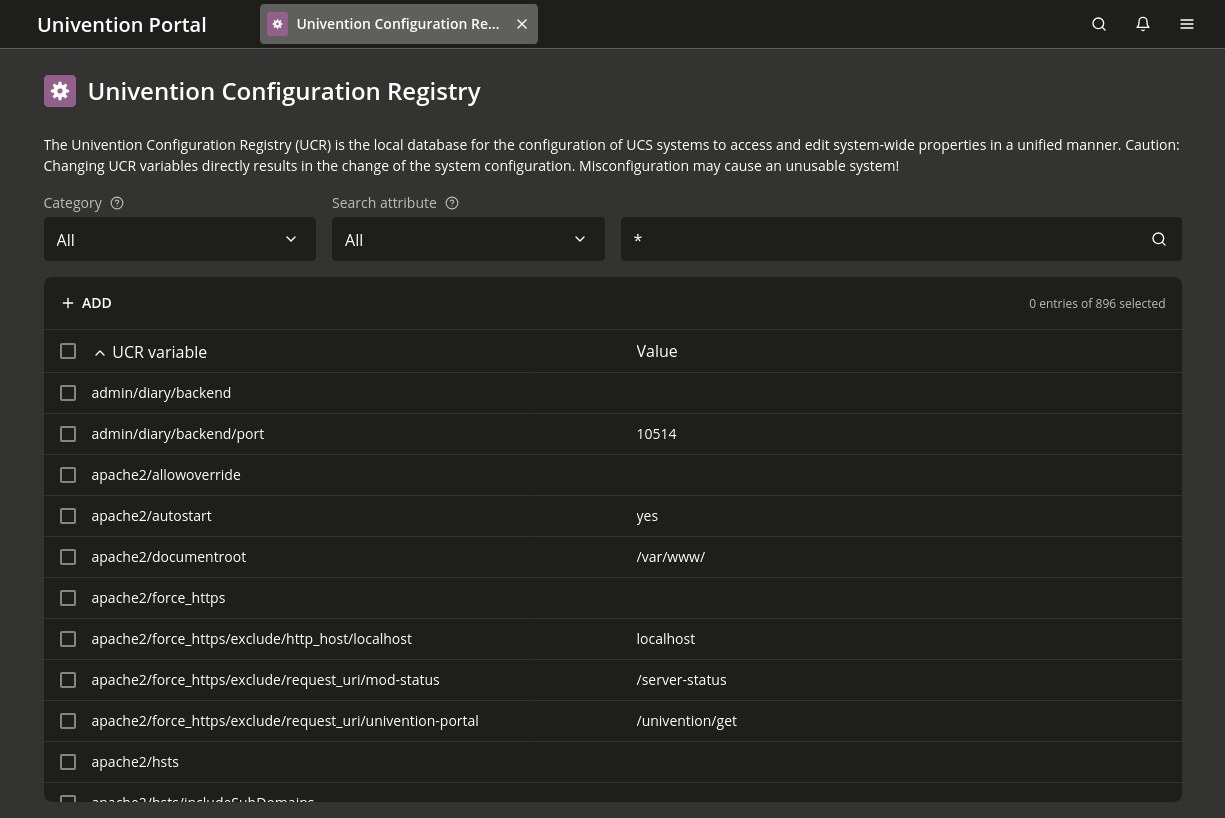
Fig. 7.1 Managing UCR variables in the Management UI#
7.1.1.1. Manage a UCR variable#
To manage UCR variables in the management module:
In the Search attribute field, filter variables by name, value, or description.
In the results table, confirm the variable names and values match your expectations.
To view a brief description of a variable, point to its name to open a tooltip.
To view the full details of a variable, select it.
To edit a variable, click its name.
To delete a variable, right-click it and select Delete.
7.1.1.2. Create a UCR variable#
To create a UCR variable:
Click Add.
Enter a name in the Variable field and a value in the Value field.
Click Save.
7.1.2. Manage UCR variables on the command line#
You must have root access to run UCR commands on the command line.
Run UCR commands with univention-config-registry. You can also use the short command ucr.
7.1.2.1. Query a UCR variable#
- get#
Use the
getsub-command to query a single UCR variable. Listing 7.1 shows an example.
7.1.2.2. Display all UCR variables#
- dump#
Use the
dumpsub-command to display all variables that have a value assigned. Listing 7.2 shows an example.
7.1.2.3. Set a UCR variable#
- set#
Use the
setsub-command to set a variable. Use only letters, periods, digits, hyphens, and forward slashes in variable names. See Listing 7.3.If the variable already exists, UCR updates its value. Otherwise, UCR creates the variable.
When you set a new value for a UCR variable, UCR checks whether the value is compatible with the variable type. If the value is incompatible, UCR rejects the value and displays an error message.
To verify the new value, use
ucr getas shown in Listing 7.4.Caution
If you use
--ignore-check, UCR skips type checking. This might disrupt service configuration or corrupt data. Use this option only if you understand the risks.
When a variable changes, UCR rewrites all linked configuration files and displays the paths of the updated files in the console. UCR doesn’t restart the affected services automatically. You need to restart the services that use the updated configuration files.
You can also change several variables in a single command, as shown in Listing 7.5. If these variables share a configuration file, UCR rewrites it only once.
$ univention-config-registry set \
  dns/forwarder1=192.0.2.2 \
  sshd/xforwarding="no" \
  sshd/port=2222
UCR lets you assign a variable value conditionally.
To set a variable only when it doesn’t already exist,
use a question mark (?) instead of an equals sign (=),
as shown in Listing 7.6.
$ univention-config-registry set dns/forwarder1?192.0.2.2
7.1.2.4. Search for variables#
- search#
Use the
searchsub-command to find a variable. Listing 7.7 shows a search for variable names that containldapand their current values. Thesearchsub-command supports regular expressions. For the full syntax, seere — Regular expression operationsin Python 3.12 documentation [9].$ univention-config-registry search ldap
To search by value, see Listing 7.8, which lists all variables set to
primary.example.com.$ univention-config-registry search --value primary.example.com
7.1.2.5. Delete a UCR variable#
- unset#
Use the
unsetsub-command to delete a variable. Listing 7.9 shows an example that deletes the variabledns/forwarder2. You can also delete multiple variables in one command.
7.1.2.6. Regenerate a configuration file from its template#
- commit#
Use the
commitsub-command to regenerate a configuration file from its template. Listing 7.10 shows an example that regenerates/etc/samba/smb.conf. Use thecommitsub-command when you edit a template file manually, rather than when you change a UCR variable value.If you run ucr commit without a filename, UCR rebuilds all managed files from their templates. This command is useful after restoring a backup or when troubleshooting template-related issues.
$ univention-config-registry commit /etc/samba/smb.conf
To verify that UCR regenerated the file, inspect its content or check its modification time, as shown in Listing 7.11.
7.1.2.7. Use UCR variables in shell scripts#
- shell#
Use the
shellsub-command to display UCR variables and their current values in shell script format, as shown in Listing 7.12.$ univention-config-registry shell ldap/server/name
UCR applies the following two conversions to the output:
Forward slashes in variable names become underscores.
UCR escapes characters with special meaning in shell, such as spaces, quotes, and dollar signs, to prevent unintended interpretation by the shell.
To use UCR variables as environment variables in a shell script, pipe the output to eval. See Listing 7.13 for an example.
$ eval "$(univention-config-registry shell ldap/server/name)"
$ echo "$ldap_server_name"
primary.example.com
7.1.3. UCR variable precedence#
UCR applies variable values in this priority order, from lowest to highest:
- Local variables
Variables you set directly on the system with
ucr set.- Policy variables
Variables distributed from the directory service that override local variables. If a higher-priority policy already overrides the variable you set, UCR displays a warning.
- Schedule-level variables
Variables that are valid only for a specified period. Set them with
--schedule. Nubus for UCS uses the schedule level for time-based automation.- Force-level variables
Variables with the highest priority. They override policy and schedule variables. Set them with
--force. See Listing 7.14 for an example.$ univention-config-registry set --force mail/messagesizelimit=1000000
7.1.4. Modify UCR templates#
A UCR template is a configuration file with markers. UCR replaces these markers with variable values when it generates the file.
You can embed inline Python code in UCR templates. Use it to add conditions or compute values from other variables.
UCR stores templates in /etc/univention/templates/files/
and uses the absolute path of the configuration file as the template filename.
For example,
the template for /etc/issue is at /etc/univention/templates/files/etc/issue.
UCR template files must use Unix line endings: LF only, not CRLF.
Caution
If you edit a template file on Windows,
the editor may insert CRLF line endings
that disrupt UCR processing.
Before you edit the template,
run dos2unix FILENAME
to convert it to Unix format.
Nubus for UCS packages ship with UCR templates.
When you update a package,
UCR checks whether you modified the templates.
If you modified a template,
UCR preserves your changes.
It saves the updated package template
with the suffix .dpkg-new or .dpkg-dist
in the same directory
and logs a message to /var/log/univention/actualise.log.
7.1.4.1. Reference UCR variables in templates#
To reference a UCR variable in a template, use the @%@ marker.
Listing 7.15 shows the X11 forwarding option
in /etc/ssh/sshd_config.
X11Forwarding @%@sshd/xforwarding@%@
UCR detects variable references in templates
that use the @%@ marker.
If your template uses inline Python code,
you must register additional variables explicitly.
For details, see Integrate inline Python code in templates.
7.1.4.2. Integrate inline Python code in templates#
You can embed Python code blocks delimited by @!@
to add conditions or compute values from other variables.
Listing 7.16 shows how inline Python code in a template
configures SSL settings from UCR variables.
@!@
if configRegistry.get('apache2/ssl/certificate'):
    print('SSLCertificateFile %s' %
        configRegistry['apache2/ssl/certificate'])
@!@
UCR inserts the output of print statements
into the generated configuration file.
Listing 7.17 shows how to access UCR data
through the ConfigRegistry object.
For details about how UCR registers variables, see Reference UCR variables in templates.
@!@
if configRegistry.get('version/version') and \
        configRegistry.get('version/patchlevel'):
    print('UCS %(version/version)s-%(version/patchlevel)s' %
        configRegistry)
@!@
7.1.4.3. Register UCR variables in an info file#
To register UCR variables in an info file:
Create an info file under
/etc/univention/templates/info/. Name the file after the package, for examplePACKAGENAME.info.In the info file, list the UCR variables that your template uses. For the info file format, see debian/package.univention-config-registry in Univention Developer Reference [6].
If you add Python code that uses additional variables, either add them to the existing
.infofile or create a new one for that package.Run ucr update to apply the changes.
7.1.5. Configure UCR variables with policies#
Some UCR settings apply to a single system, such as the hostname. Other UCR settings apply to all systems in the domain, such as the mail relay host setting. Use the UCR policy in the Policies management module to group variables and assign them to multiple computers.
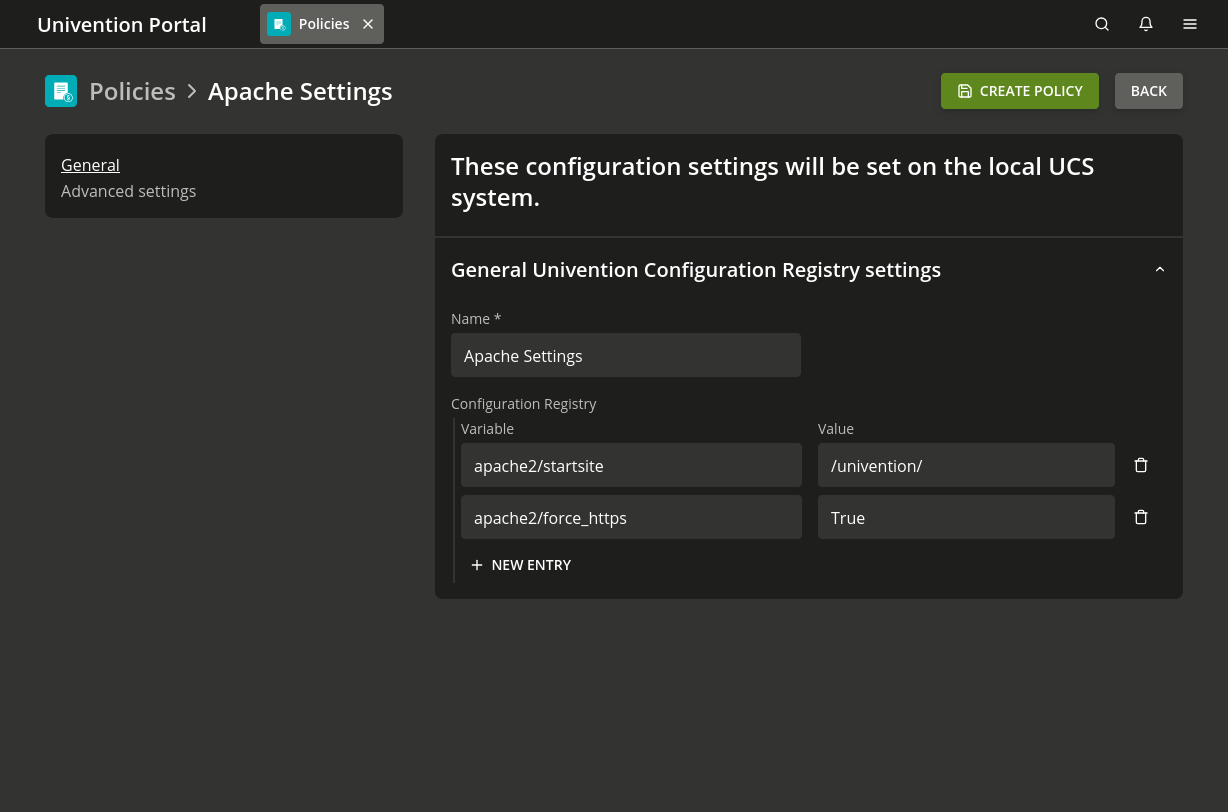
Fig. 7.2 Policy-based configuration of the Apache start page and forced HTTPS#
To create and assign a UCR policy:
Open Policies management module in the Management UI.
Click Add and select Univention Configuration Registry.
Enter a Name for the policy.
Add at least one variable name in the Variable field and enter a value in the Value field. For an example, see Fig. 7.2.
Click Create Policy to create the policy.
Assign the policy to a computer object, container, or organizational unit (OU). For details, see Assign policies.
UCR policies don’t write values directly to the system.
Instead, Nubus for UCS writes the values to the LDAP object of the computer.
The computer reads the values during the next synchronization.
The ldap/policy/cron UCR variable controls the synchronization interval.
The default interval is one hour.
To verify that UCR applied the policy after the next synchronization,
run ucr dump on the target system.
For an example, see Listing 7.18.
To learn how UCR prioritizes variables,
see UCR variable precedence.
$ univention-config-registry dump | grep VARIABLENAME
See also
- Policies module
in Nubus Manual 1.x [3] for reference information about the Policies management module
- Assign policies
in Nubus Manual 1.x [3] for information about how to assign policies.