
4.2. Activate UCS license#
Your system runs a Nubus for UCS Core Edition license by default. Activating the Nubus for UCS license enables access to the Univention App Center. It also defines capacity limits for users and clients in your domain. This section guides you through viewing, activating, requesting, and managing your license.
4.2.1. About UCS licenses#
The UCS license registers your system with Univention and defines your support status and usage limits. UCS offers two types of licenses: a free Core Edition license and a commercial Subscription license.
See also
- Prices and Subscriptions
for information about pricing and subscription options for Nubus for UCS.
4.2.1.1. Core Edition license#
The Core Edition license is the free version of UCS with no commercial support. It comes in two variants:
- Unregistered license
When you install Nubus for UCS, it includes an unregistered license by default. This license doesn’t limit your use of Nubus for UCS. Some app providers expect your system to have a registered license so they can collect information about who’s using their apps.
- Registered license
You can generate a registered license through one of these methods:
During Nubus for UCS installation in the Mode: Create a new UCS domain step.
When installing an app that requires registration in How to install applications.
Through the steps described in Register for a personalized Core Edition license.
Registering a license doesn’t change how you can use Nubus for UCS—it’s primarily for identification purposes.
4.2.1.2. Subscription license#
Univention generates a subscription license when you sign a subscription contract with Univention. This license includes an identifier that lets you create support tickets, get assistance with service level agreements, and access extended maintenance. Subscription licenses can have usage limits, as described in License key limits.
4.2.2. View license information#
You can manage the Nubus for UCS license on the Primary Directory Node through the Welcome management module.
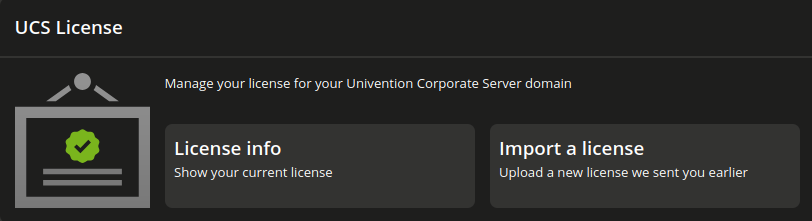
Fig. 4.1 The Welcome management module#
To view the license information, follow these steps:
Sign in to the Univention Portal.
Navigate to . Fig. 4.1 shows the license part of the Welcome module.
Click License info. You see the license information, as shown in Fig. 4.2.
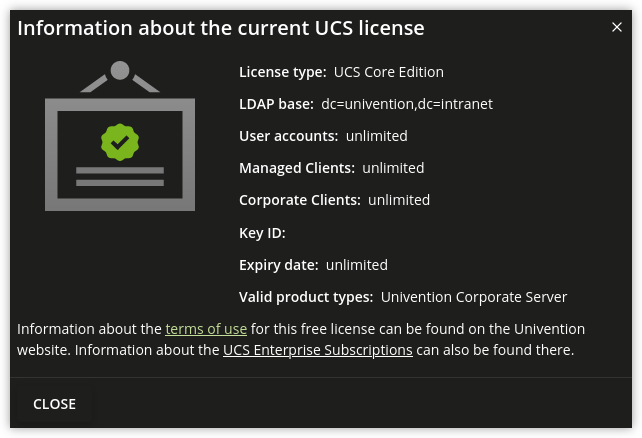
Fig. 4.2 Dialog with information about the UCS license#
4.2.3. Activate a license#
To activate a license key in the Welcome management module, click Import a license. You can import a license in the following ways:
- Import from file
To select a license file from your computer, click Import from file….
- Import from text field
Alternatively, paste your license key into the text field and click Import from text field.
To verify the imported license key,
follow the steps in View license information,
where the field Key ID displays a unique identifier.
4.2.4. Register for a personalized Core Edition license#
If you’re using Nubus for UCS Core Edition and need App Center access, request a personalized license key. You may already have requested the license during one of the following tasks:
During the installation of Nubus for UCS in the domain setup step. See Mode: Create a new UCS domain.
When you install an app through the App Center and haven’t activated a license before, the App Center asks you to request a personalized license.
If you haven’t requested a personalized license for the Core Edition through those methods before, you can request one at any time through the following steps:
Click Request a license in the Welcome management module.
Enter an email address you can access.
Univention sends your license key to that address within a few minutes as a text file attachment with cryptographic elements.
To import your license key, follow the steps in Activate a license.
4.2.5. License key limits#
The license key defines the following limits for the subscription license:
Number of user accounts
Number of managed clients
If you exceed a license limit, you can’t create new objects or edit existing ones in management modules. A warning message appears to explain which limit you’ve exceeded.
To resolve the limits, you can:
Import an extended license.
Delete unused user or computer objects.