
5.2. Update strategies#
Keeping your Nubus for UCS systems current with the latest updates is essential for security, stability, and access to new features. Depending on your environment and operational needs, you can choose from different update strategies and methods.
You can update Nubus for UCS systems in two ways: by updating individual systems using the Software update management module or the command line. To update multiple systems at once, use a computer policy.
5.2.1. Planning updates in multiserver environments#
When you update multiple UCS systems, you need to plan your update order carefully. The Primary Directory Node holds the authoritative LDAP directory service and replicates it to all other LDAP servers in your domain. Because LDAP schemas can change during release updates, you must always update the Primary Directory Node first.
Whenever possible, update all your Nubus for UCS systems in a single maintenance window. If you can’t do this, ensure that any systems you haven’t updated are no more than one minor version older than your Primary Directory Node. For information about the versioning, see Distinguish release types and cycles.
5.2.2. Update methods#
You have three ways to perform updates: through the graphical interface with the Management UI, the command line, or using automated policies. Choose the method appropriate for your environment and operational needs.
Regardless of the update method that you decide on,
the system writes all messages from the update process to
the /var/log/univention/updater.log file.
5.2.2.1. Update through the management module#
You can use the Software update management module in the Management UI to install both release updates and errata updates on your system.
Fig. 5.1 shows the overview page of the management module.
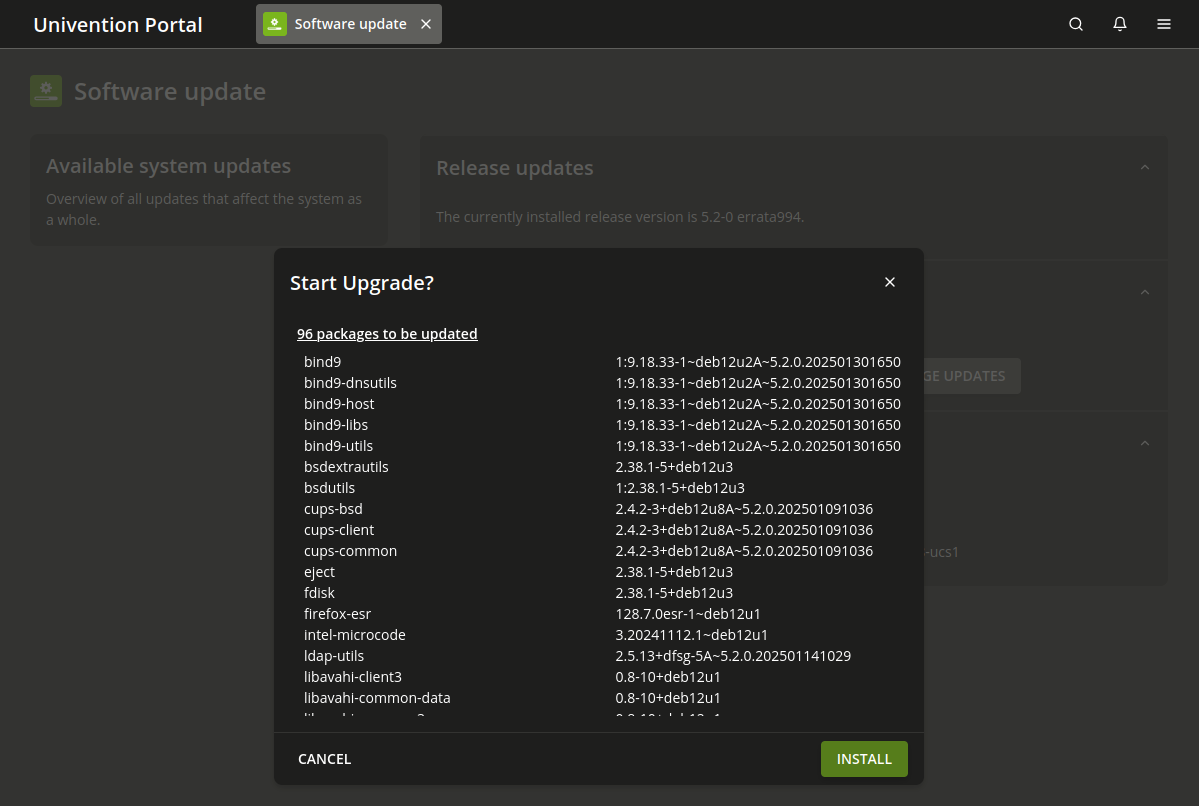
Fig. 5.1 Updating a Nubus for UCS system through the Software update management module#
To install release updates, perform these steps:
Sign in to the Management UI with a user account from the
Domain Adminsgroup, such asAdministrator.Navigate to .
To refresh the package sources, click Check for package updates. Use this, for example, when a component provides an updated version.
- Release updates
The Release updates section shows the installed version and updates available Nubus for UCS versions.
To update to the selected target version, click Install release updates. Nubus for UCS shows update notes with information about service restrictions during the update and asks you to confirm the update. The system automatically installs all intermediate versions needed to reach your selected version.
- Package updates
The Package updates section shows the available errata updates.
To install errata updates, click Install available errata updates. This installs all available errata updates for your current release and installed components.
5.2.2.2. Update through the command line#
You must have root user rights and work on a terminal
to perform the following steps.
Run the univention-upgrade command to update your system. This command does the following:
Checks for available release or application updates.
Prompts you to confirm the update.
Installs the updates, including any package updates, such as errata updates.
Important
Avoid updating remotely over SSH, as network disconnections can interrupt the update. If you must update over a network connection, use screen or at to ensure the update continues despite network issues. All system roles have both programs installed.
5.2.2.3. Update through a policy#
You can configure automatic updates for multiple computers at once using the Automatic updates policy. Use this policy in the Computers module or LDAP directory module. For information about policies, see Policies module in Nubus Manual 1.x [3].
Fig. 5.2 shows a typical policy configuration.
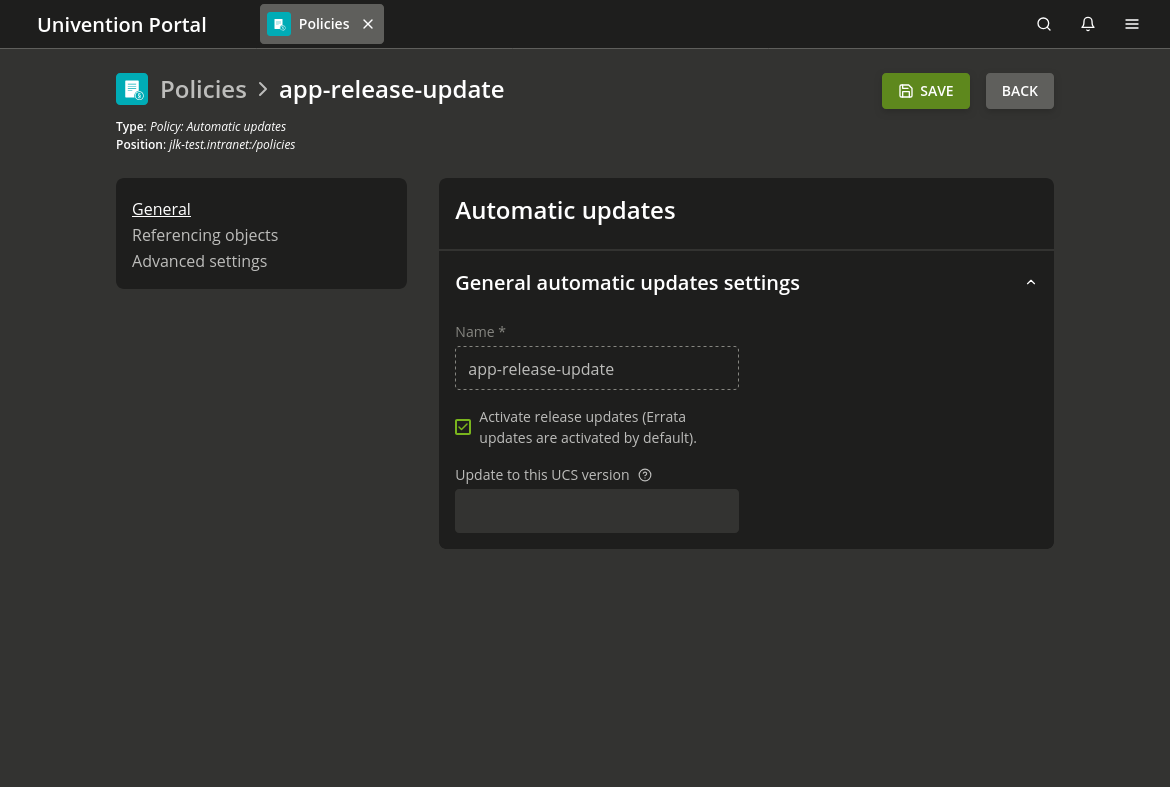
Fig. 5.2 Updating UCS systems using an update policy#
To update Nubus for UCS through a policy, configure the following settings:
Create a policy. Choose the policy type Policy: Automatic updates.
Activate the Activate release updates field to enable release updates.
Enter a version number in the Update to this UCS version field, for example
5.2-4. If you leave this blank, systems update to the highest available version.Set the update schedule using a Maintenance policy, see Package maintenance policy.
Finally, you need to assign the policy, see Assign policies.
5.2.3. Post-processing after release updates#
After you complete a release update, you must verify whether you need to run new or updated join scripts.
You can verify and run join scripts in the following ways:
Use the Domain join management module in the Management UI.
Run the command-line program univention-run-join-scripts.
For details on join script management, see How UCS systems join domains.
5.2.4. Troubleshooting update problems#
If you encounter problems during an update, use these resources to diagnose the issue:
- Update log
The system writes detailed messages to
/var/log/univention/updater.log. Review this file first for error messages and diagnostic information.- Configuration registry backup
Before the update, the system saves the status of all Univention configuration registry variables to
/var/univention-backup/update-to-<TARGETRELEASEVERSION>/. Use this directory to verify which configuration values changed during the update.This information helps you identify whether the update completed correctly and which system configurations it affected.