
2.3. Domain setup#
You start the final configuration step of the Nubus for UCS system by selecting a domain mode. Fig. 2.12 shows the domain modes. They influence the next configuration steps. The following domain modes are available:
- Create a new UCS domain
The Create a new UCS domain configures the first system in a UCS domain, a Nubus for UCS system with the UCS Primary Directory Node system role. The subsequent steps request required information to set up the directory service, authentication service, and the DNS server. A Nubus for UCS domain can consist of one single or several Nubus for UCS systems. You can add additional Nubus for UCS systems at a later point in time using the Join into an existing UCS domain mode. For more information, see Mode: Create a new UCS domain.
- Join into an existing Active Directory domain
This mode operates Nubus for UCS as a member of a Windows Active Directory domain. The configuration is suitable for expanding an Active Directory domain with applications available on Nubus for UCS. Apps installed on Nubus for UCS are then available for the users of the Active Directory domain to use. The subsequent steps request information for joining the Active Directory domain and configure Nubus for UCS accordingly. For more information, see Mode: Join an existing Active Directory domain.
- Join into an existing UCS domain
This mode configures the Nubus for UCS system to join an existing Nubus for UCS domain. At a later step, the system setup asks for what system role it assigns. For more information, see Mode: Join an existing UCS domain.
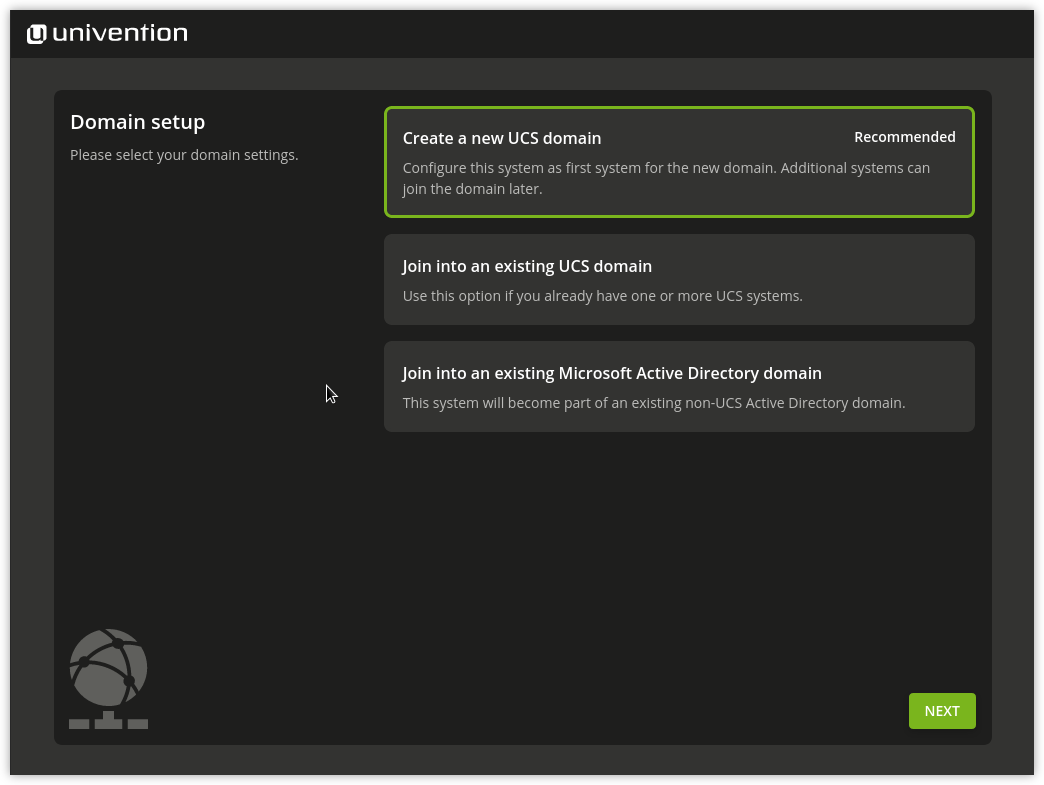
Fig. 2.12 Domain settings#
2.3.1. Naming convention for hostnames#
During Nubus for UCS installation, the domain setup asks for a hostname and a domain name as fully qualified domain name. For compatibility reasons with Samba and Active Directory domains, the hostname must adhere to the following naming convention:
Length from 1 to 13 alphanumeric characters.
Only lower case letters (
a-z) and numerals (0-9).Start and end with an alphanumeric character and can contain a hyphen (
-) in between.
The naming convention has the regular expression in Listing 2.1.
^[a-z0-9][a-z0-9-]{0,11}[a-z0-9]?$
2.3.2. Naming constraint for the domain name#
For Windows compatibility, the leftmost label of the DNS domain name must not exceed 15 characters.
Windows derives a NetBIOS domain name from the leftmost label of the DNS domain name,
for example company from company.intranet.
Windows truncates labels longer than 15 characters,
which can cause sign-in errors for Windows clients joining the domain.
2.3.3. Mode: Create a new UCS domain#
After you selected Create a new UCS domain, system setup asks for the following information, see Fig. 2.13:
- Organization name
You can optionally specify an organization name. The system setup uses the organization name to automatically generate a domain name and the LDAP base.
- Email address
If you provide a valid email address, system setup activates a personalized license and sends it to the address. Univention App Center requires the license to install apps. Univention automatically generates the license and immediately sends it to the specified email address. You import the license through the Welcome management module, see Activate a license.
- Fully qualified domain name
Provide the fully qualified domain name for the system, including hostname and domain name. System setup derives the name of the Nubus for UCS system and the DNS domain from it. System setup automatically generates a suggestion if you provided an Organization name. For the naming convention of the hostname, see Naming convention for hostnames.
Important
Recommendation: don’t use publicly available DNS domains for your DNS domain, as this can result in name resolution problems.
- LDAP base
You must specify an LDAP base to initialize the directory service. System setup automatically creates a suggestion from the Fully qualified domain name. You can usually accept the suggestion without changes.
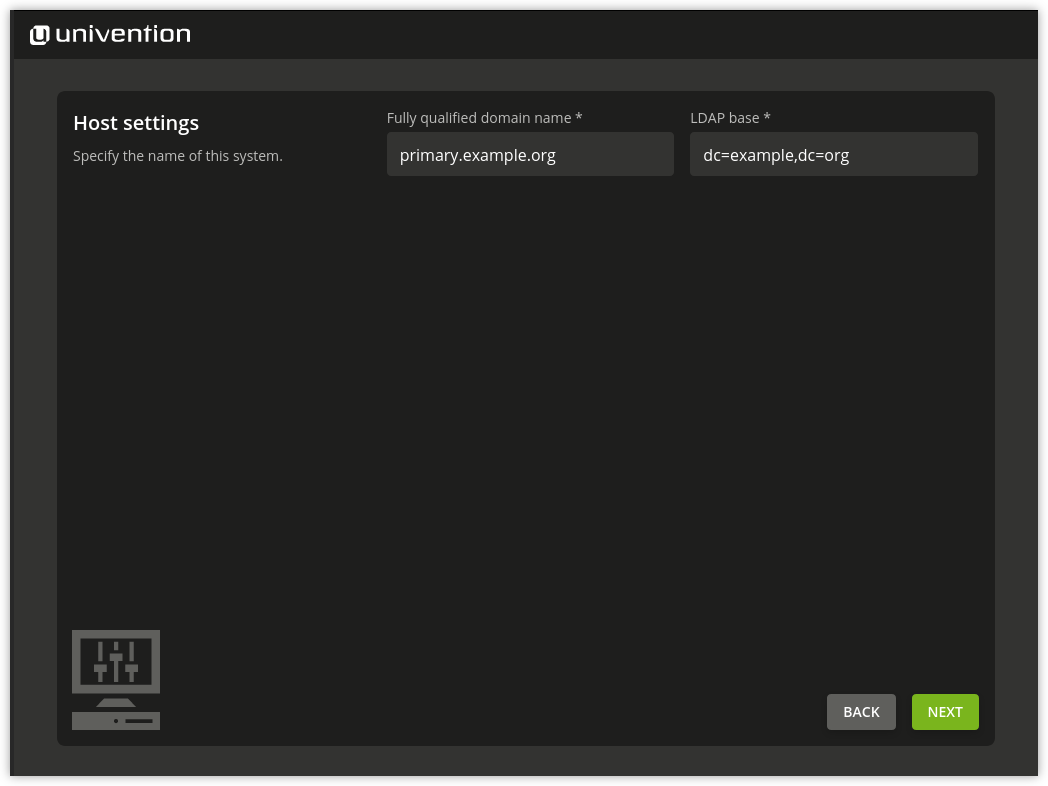
Fig. 2.13 Specify of hostname and LDAP base#
2.3.4. Mode: Join an existing Active Directory domain#
If you configured the DNS server of an Active Directory domain during the network configuration, system setup automatically suggest the name of the Active Directory domain controller in the Active Directory account information step, see Fig. 2.14. If the suggestion is incorrect, you can provide the name of another Active Directory domain controller or another Active Directory domain.
You need to provide an Active Directory account and its corresponding password to enable your Nubus for UCS system to join the Active Directory domain. The user account must have the permission to join new systems in the Active Directory domain.
In addition, you need to define a hostname for the Nubus for UCS system. You can adopt the suggested hostname or provide a different one. For the naming convention of the hostname, see Naming convention for hostnames.
System setup automatically derives the system’s domain name from the domain DNS server. However, in some scenarios such as hosting a public mail server, you may need to use a different fully qualified domain name. The Nubus for UCS system joins the Active Directory domain with the specified hostname.
Important
After the configuration is complete, you can’t change the domain.
In a Nubus for UCS domain, you can install systems in different system roles. The first Nubus for UCS system that joins an Active Directory domain, automatically has the UCS Primary Directory Node system role. If you select this mode during the installation of addition Nubus for UCS system, system setup shows the selection dialog for the system role. For the system role selection, see Mode: Join an existing UCS domain.
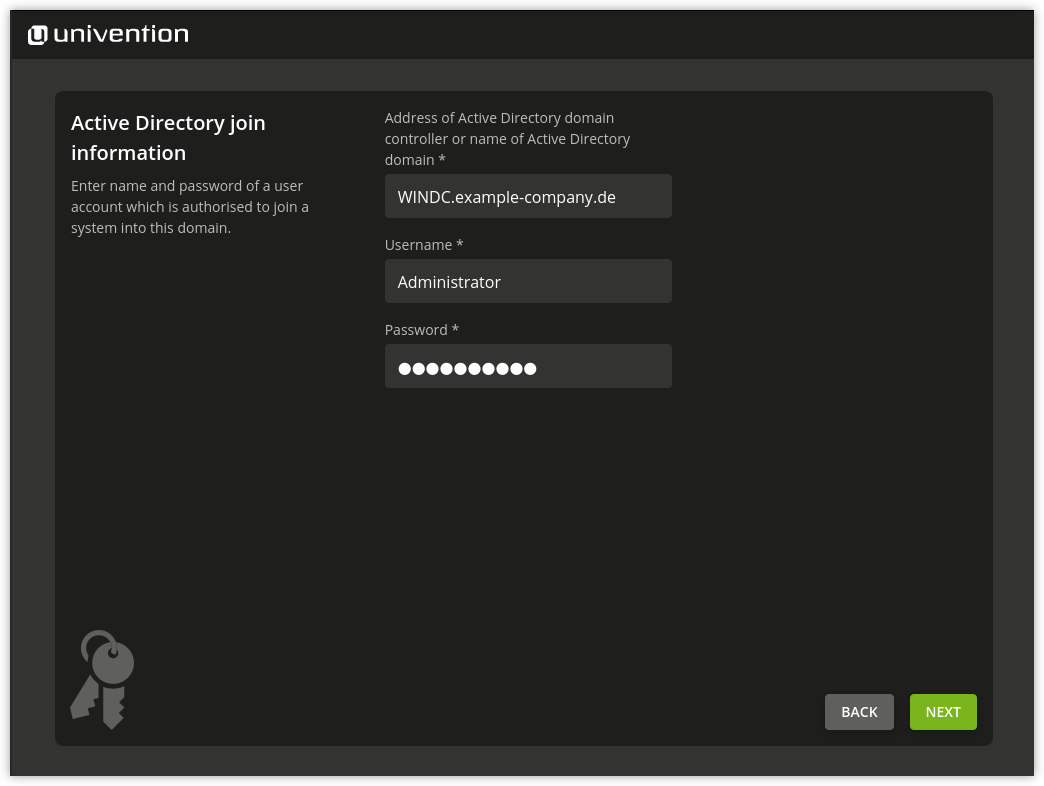
Fig. 2.14 Information on the Active directory domain#
2.3.5. Mode: Join an existing UCS domain#
Important
Before you join an additional system, make sure the UCS Primary Directory Node is at the latest patch level. System setup blocks the join if the joining system is at a higher patch level than the Primary, and displays an error message.
To join an existing Nubus for UCS domain, you need to process the following steps:
Select the system role.
In a Nubus for UCS domain, you can install systems in different system roles. The first system in a Nubus for UCS domain always has the UCS Primary Directory Node system role. Additional Nubus for UCS systems can join the domain at a later point in time. You can assign them one of the following system roles.
After you selected the system role for Nubus for UCS, the system setup asks for more information to join the domain, see Fig. 2.15.
- Start join at the end of the installation
If you don’t intend to let the system setup run the domain join automatically during the installation, deactivate the option Start join at the end of the installation.
- Search Primary Directory Node in DNS
System setup automatically determines the fully qualified domain name of the UCS Primary Directory Node by asking the DNS server for the service record
_domaincontroller_master._tcp.$domainname. The automatic lookup only works, if you provided the Primary Directory Node as DNS server during Set up network configuration.If you decide to join another Nubus for UCS domain, you can deactivate Search Primary Directory Node in DNS and provide the fully qualified domain name of the preferred UCS Primary Directory Node.
- Credentials for domain administrator
The domain join process needs to access information about the domain. To grant system setup the appropriate permission, you need to provide the credentials for an Administrator account of the domain.
Finally, provide a hostname for the Nubus for UCS system. You can adopt the suggested hostname or change it. For the naming convention of the hostname, see Naming convention for hostnames. The system setup automatically derives the domain name of the computer from the domain DNS server. In some scenarios, such as a public mail server, it may be necessary to use a certain fully qualified domain name.
Important
After the configuration is complete, you can’t change the domain.
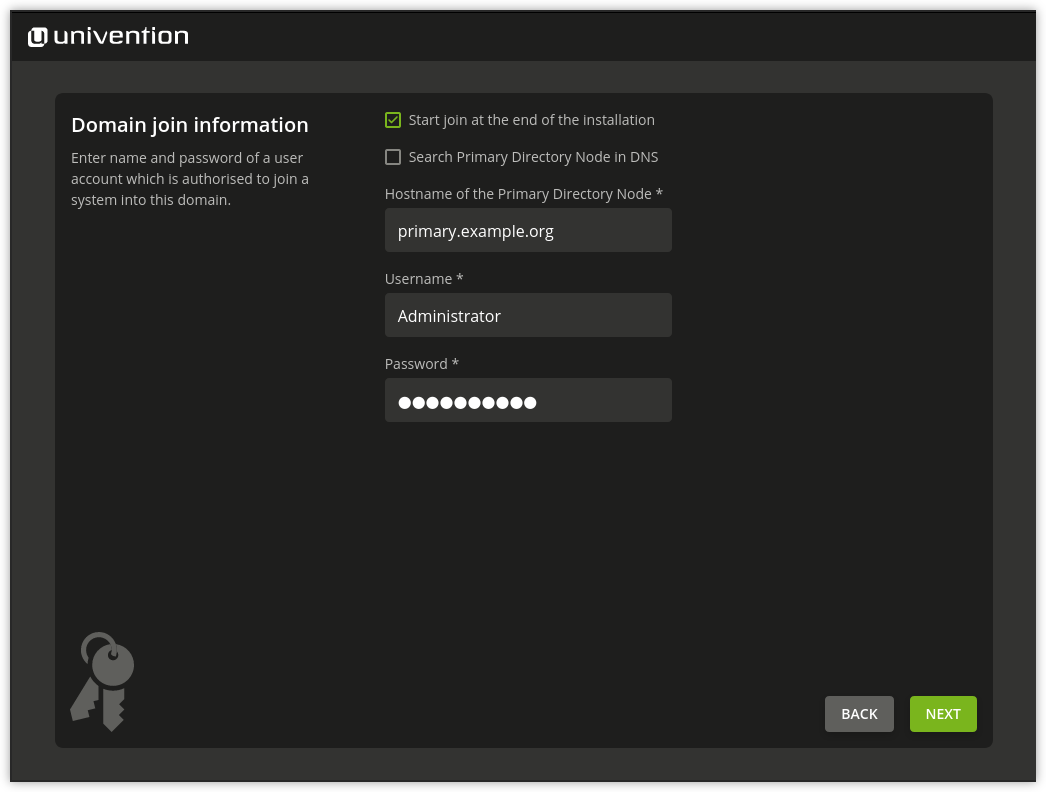
Fig. 2.15 Information on the domain join#
2.3.6. Confirm the installation settings#
Confirm configuration settings shows a summary of your settings, see Fig. 2.16.
- Update system after installation
The Update system after installation option instructs system setup to install updates after the installation. The behavior depends on the system role that you want to set up.
- Setting up a Primary Directory Node
System setup installs all available patch level updates and errata updates on the Primary Directory Node itself, up to the latest available patch level within the current release.
- Joining an existing UCS domain
When a non-Primary system role joins an existing domain, system setup connects to the UCS Primary Directory Node to read its current patch level. It then updates the joining system up to that patch level, including all errata updates available for that version. The Primary Directory Node and all other existing domain members aren’t affected.
To verify the installation status, sign in to the UCS Primary Directory Node using the administrator credentials from Credentials for domain administrator.
If the settings match your intention, click Configure System to start the configuration of the Nubus for UCS system.
System setup shows the progress during the system configuration. It saves the installation protocol in the following files:
/var/log/installer/syslog/var/log/univention/management-console-module-setup.log
After you confirm the completion of the system setup, your Nubus for UCS system is ready for the first full boot procedure. You can restart it. The system then boots from the hard drive. After the boot procedure completes, continue with Steps after the installation.
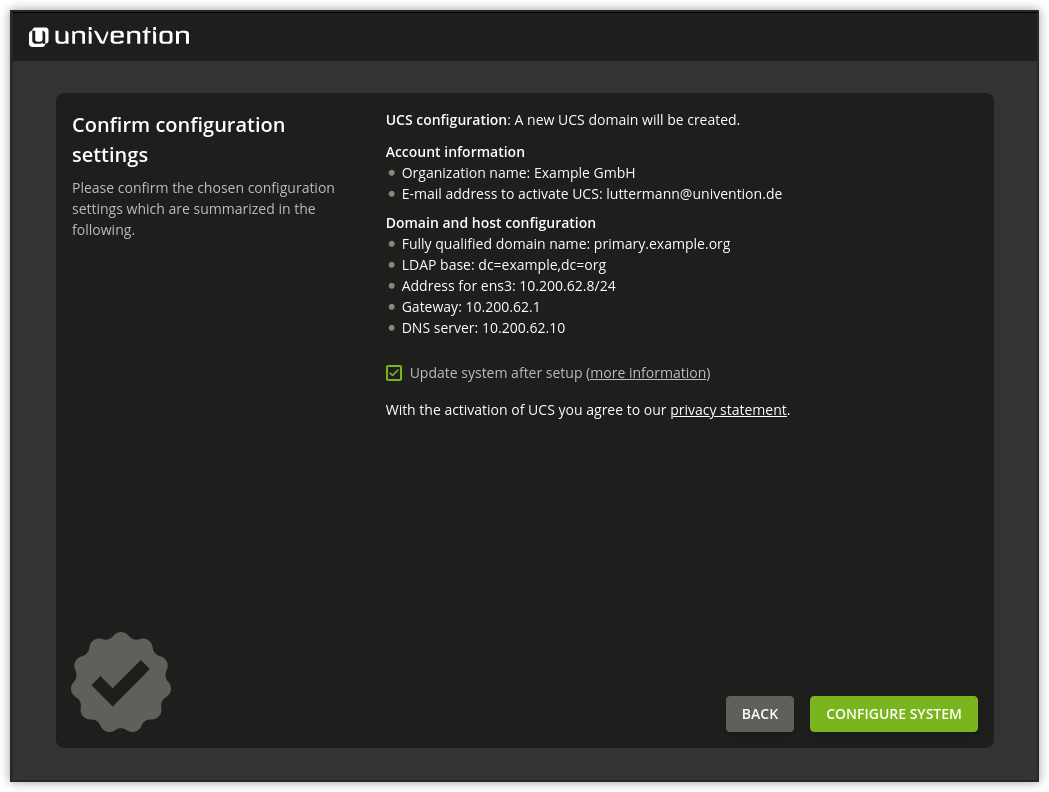
Fig. 2.16 Installation overview#