
5.7. Univention App Center#
Univention App Center is a centralized platform for discovering, installing, and managing applications in your Nubus for UCS domain. It simplifies how you extend your UCS environment with additional software components, from productivity tools to specialized business applications.
The App Center handles the complete application lifecycle—from installation and configuration to updates and removal. It automatically manages dependencies, resolves conflicts, and supports both traditional packages and containerized Docker applications. This unified approach reduces administrative overhead and ensures applications integrate seamlessly with your domain infrastructure. Fig. 5.5 shows the overview page in the App Center. Using the App Center requires a personalized license key. For more information, see Activate UCS license.
This section covers how you can use the App Center to find applications, install them on the appropriate systems, manage their configuration and lifecycle, and troubleshoot common issues.
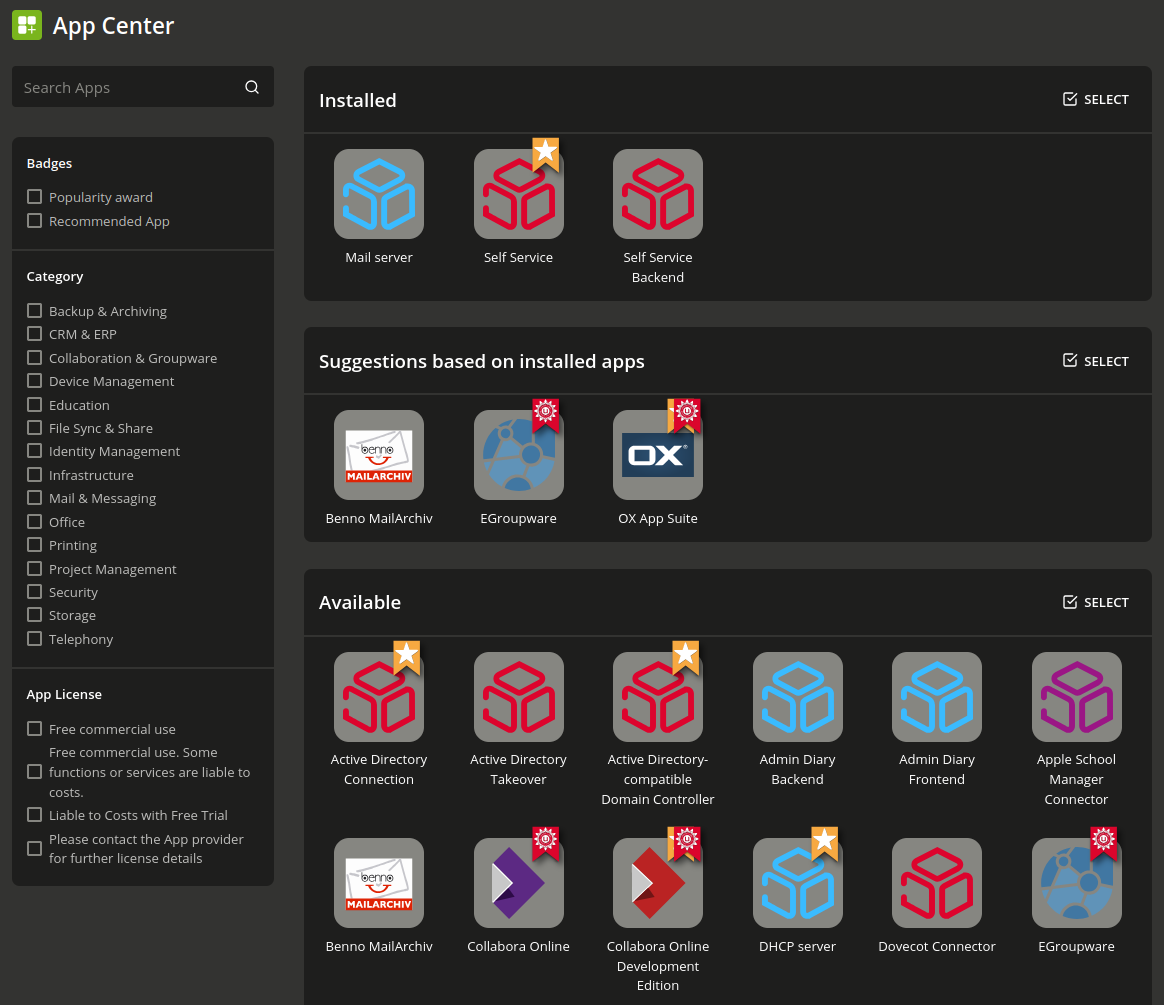
Fig. 5.5 Overview of applications available in the App Center#
5.7.1. Finding and viewing applications#
You can open the App Center management module in the Management UI at . By default, it displays all installed and available software components.
When you select an application, the App Center shows detailed information including description, manufacturer, contact, screenshots, and videos. The Notification field indicates whether Univention notifies the vendor of installation or removal. The License section shows licensing classification. For requests to the app vendor, contact them using the email in the Contact section.
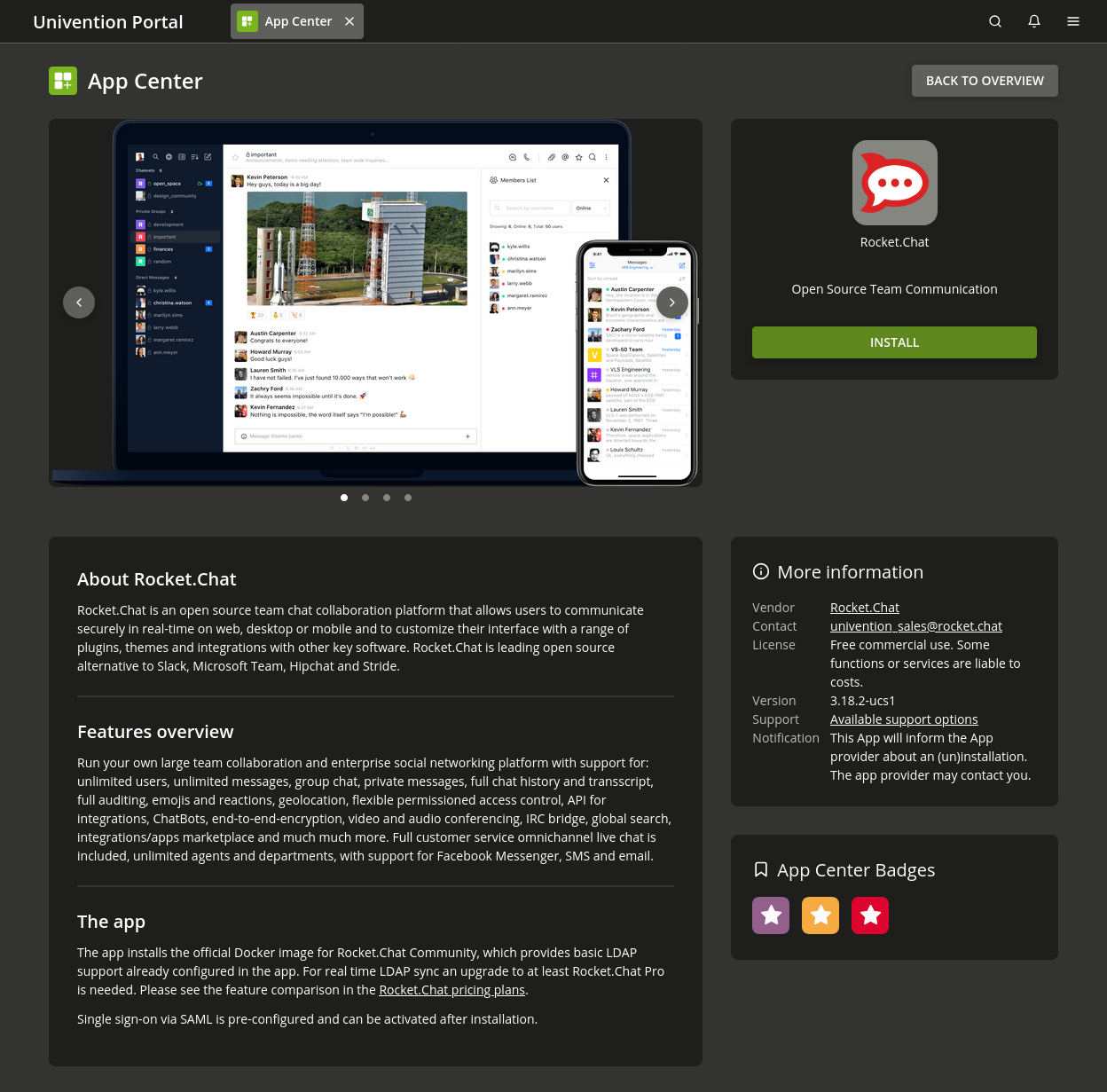
Fig. 5.6 Details for an application in the App Center#
5.7.2. How to install applications#
To install an app from Univention App Center, use the following steps:
Open the App Center. Navigate to in the Management UI.
You can find applications in several ways:
Use the search function. To find applications by name or keyword, type in your search term in Search Apps….
Browse by category. Use the Category filter to view applications by category, such as Education, Office, etc.
Use additional filters. Apply filters such as Badges or App License to narrow down your choices.
Check for conflicts.
The App Center automatically checks for conflicts with existing installations. If the selected application conflicts with installed packages, the App Center shows a list of conflicts.
You must resolve any conflicts before you continue. For example, some groupware packages require you to uninstall the mail stack. The system prevents installation until you resolve all conflicts.
Select installation target.
If your domain has multiple Nubus for UCS systems, you can select which system to install the application on. Consider which system best suits the application’s purpose and requirements.
Initiate installation. To begin the process click Install. The App Center shows the progress as it proceeds through the installation steps.
Verify successful installation. After installation completes, verify that the application:
Appears in the list of installed applications.
Docker apps are running. If configured to start automatically Nubus for UCS starts them when the system reboots. For automatic start settings, see App Settings.
If you encounter any issues, consult App Center troubleshooting.
5.7.3. Multi-host installation#
Some applications include packages for the UCS Primary Directory Node that handle LDAP schema extensions or management modules. The system automatically installs these packages on the Primary Directory Node. If installation fails, the system aborts the entire installation. The system also configures packages on all accessible UCS Backup Directory Nodes.
5.7.4. Docker applications#
Some applications use the container technology Docker. Docker encapsulates the application and its direct environment from the rest of the system. This approach increases both security and compatibility with other applications.
5.7.4.1. Domain integration#
Docker-based applications join the Nubus for UCS domain as Managed Nodes system role. The App Center automatically creates a computer object in the LDAP directory and provides the container with domain connection information and credentials. This allows the container to communicate with domain services.
However, whether and how an app uses this domain integration depends on the specific application. Not all Docker-based apps integrate with the LDAP directory for user authentication.
5.7.4.2. Network and port configuration#
The container isolation limits direct network access to the system where the App Center installed the app. Apps expose ports for forwarding from the host system to the container. The UCS firewall automatically configures rules to allow access to these exposed ports. Most applications handle port configuration automatically through their settings.
5.7.4.3. Container shell access#
If you need command-line access to a Docker application’s environment,
switch to the container by running the command
in Listing 5.11.
This example uses the fictitious app ID demo-docker-app.
$ univention-app shell demo-docker-app
5.7.5. After installation#
After installation,
the App Center shows various options when
you navigate to
,
where <App> is the name of the installed application.
Depending on the app, you find any of the following actions:
- Uninstall
Removes the application.
- Open
Takes you to a website or Management UI module where you can use or configure the application. The App Center hides this option for applications without a web interface or Management UI module.
- Update
For information about the Update action, see Application lifecycle and updates.
- App Settings
Some applications provide additional configuration options beyond basic management. The configuration options available depend on the individual application. Consult the application documentation for specific configuration options.
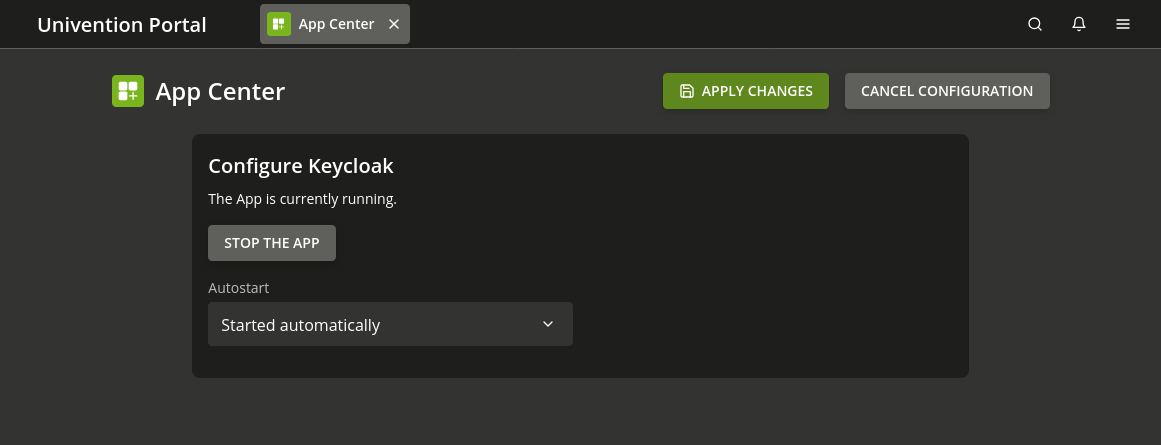
Fig. 5.7 App Center settings dialog for an application#
The App Settings also contain configuration for the automatic start of the app after a system reboot. The autostart option can have the following values:
- Started automatically
ensures that the app is started automatically when the server is started up.
- Started manually
prevents the app from starting automatically. You can start the app through the App Center management module.
- Starting is prevented
prevents the app from starting at any time. You can’t even start the app through the management module.
5.7.6. Application lifecycle and updates#
Apps receive regular updates to provide new features, fix bugs, and address security issues. Understanding the app lifecycle helps you keep your environment current and secure. Under Manage installation, the App Center shows the Upgrade option. The Software update module also displays update notifications.
- How updates work
App Center apps receive updates independently of the Univention release cycles. When a vendor publishes a new version, the App Center detects it and does the following:
Display a notification in the App Center management module.
Show an update notification also in the Software update management module.
Lets you review the update details before deciding to install.
- Installing application updates
To install an application update, use the following steps:
Open the App Center management module.
Select the application from the available updates section.
Review the update details.
Click the Upgrade action in Manage installation to begin the update.
Monitor the installation progress.
Verify the version is functioning correctly.
- Application end-of-life
Some applications may eventually reach end-of-life status:
The vendor may stop providing updates and support.
Consider removing applications that are no longer maintained.
Plan upgrades or replacements for critical applications.
Coordinate with users before removing applications from production.
5.7.7. App Center troubleshooting#
If you encounter issues with the App Center or installed applications, this section provides guidance for diagnosing and resolving common problems.
5.7.7.1. Installation failures#
Application installations can fail for various reasons. This section addresses common installation errors and provides troubleshooting steps.
- Application installation fails to complete
Check the following:
Review the installation log, see Logging and diagnostics.
Confirm network connectivity between systems.
Verify that the Primary Directory Node is operational.
- Insufficient disk space error
The installation failed because the target system lacks adequate disk space. To resolve it:
Free up disk space by removing unused applications or files.
Use the df -h command to verify available space.
Retry the installation once sufficient space is available.
- Permission denied errors
You don’t have the required permissions to install applications. To resolve the errors:
Make sure you signed in with administrative credentials.
Verify that your user account is part of the
Domain Adminsgroup.
- Dependency resolution failures
An application requires other packages that the App Center can’t install automatically. To resolve:
Review the error message for missing dependencies.
Install required packages manually if necessary.
Contact the application vendor for compatibility information.
5.7.7.2. Docker-specific issues#
Docker-based applications may encounter issues related to containerization, network configuration, or domain integration. This section covers Docker-specific troubleshooting.
- Container fails to start
The application container doesn’t start after installation. To resolve:
Verify Docker is running: docker ps -a.
Check container logs: univention-app logs <app-name>.
Verify adequate system resources, such as disk, memory, and CPU.
Check that network connectivity is available.
Review application-specific documentation.
- Port conflicts
The container can’t bind to required ports. To resolve:
Identify which ports the application requires.
Free up required ports on the target system.
- Container can’t join the domain
The container fails to integrate with the Nubus for UCS domain. To resolve:
Verify Primary Directory Node is accessible and operational.
Check network connectivity from container to LDAP server.
Check container logs for LDAP error messages.
5.7.7.3. Logging and diagnostics#
Checking log files and diagnostic information helps identify the root cause of failures. This section lists key log locations to review. For troubleshooting, check the following log files:
- App Center management module
/var/log/univention/management-console-module-appcenter.log- Docker application logs
You can access container logs using: univention-app logs <app-name>. For troubleshooting Docker-based apps, see Docker-specific issues.
- System logs
Review
/var/log/univention/appcenter.logfor the following information:LDAP synchronization and domain integration issues.
General system messages for resource or connectivity issues.
Container and application-related errors.