
4.7. Directory reports#
Univention Directory Reports creates ready-made reports for any object in the directory service.
You define report structure using templates. The specification language lets you use wildcards that you can replace with values from the LDAP directory. You can create any number of report templates. This enables you to generate detailed reports or create basic address lists, for example.
You can create reports directly from the management modules Users, Groups, and Computers. Alternatively, you can use the command line program univention-directory-reports.
Univention Directory Reports includes six predefined report templates for users, groups, and computers. Three templates produce PDF documents and three produce CSV files that you can import into other programs. You can also create and register additional templates. For more information, see Customize reports.
See also
For more information about the management modules, see Nubus Manual 1.x [3]:
4.7.1. Create reports through management modules#
To create a report through the management modules, follow these steps:
Open the management module Users, Groups, or Computers.
Select all the objects you want to include in the report. You can select all objects by clicking the checkbox to the left of Name. For example, see Fig. 4.3.
Click to choose between the Standard Report (PDF) and the Standard CSV Report (CSV).
Download and save the generated report file from the browser.
The system stores reports created through a management module for 12 hours, then automatically deletes them through a cron job. You can configure when the cron job runs and how long to store reports using two UCR variables:
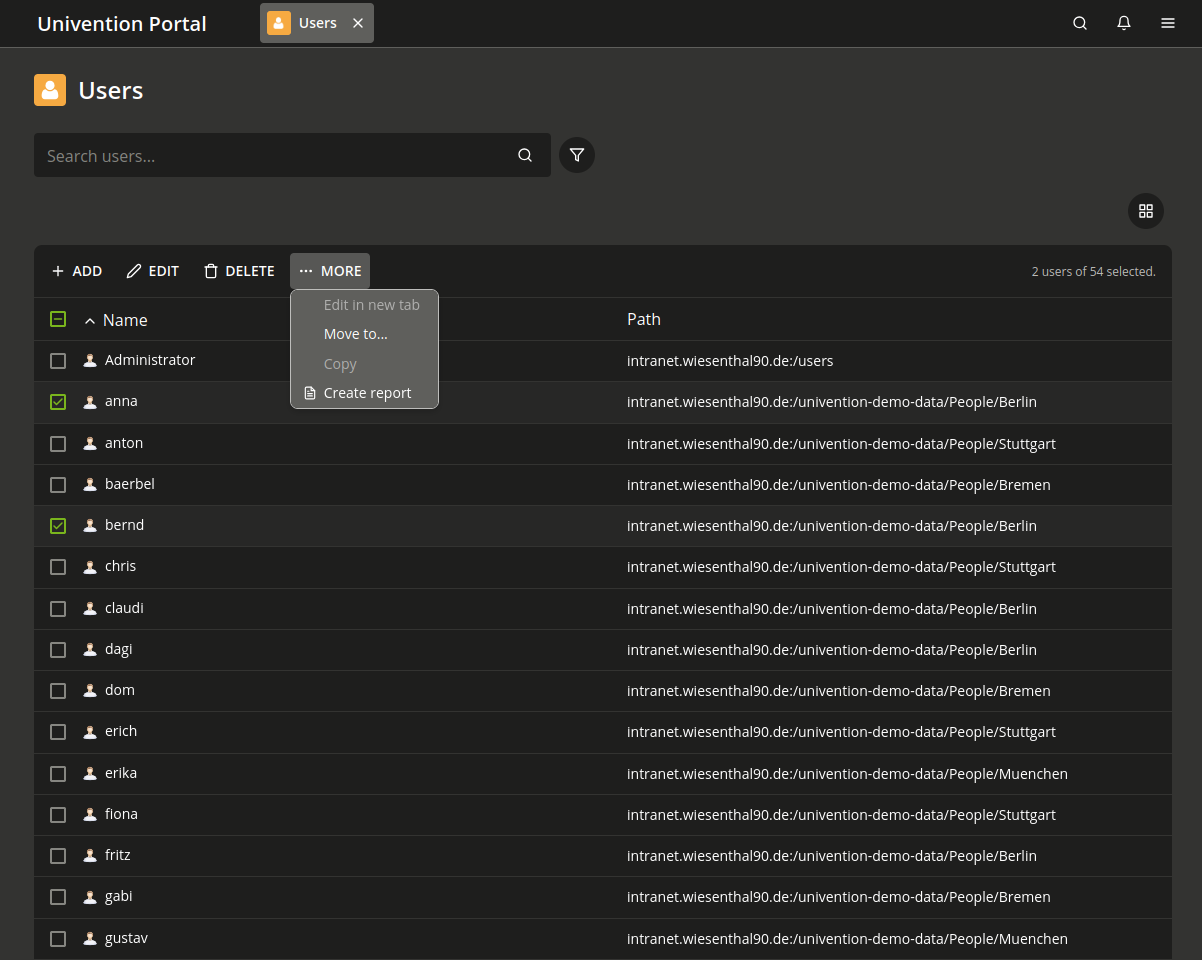
Fig. 4.3 Create a report#
4.7.2. Create reports on the command line#
You can also create reports on the command line with the
univention-directory-reports command.
Run it with the --help option to view usage information.
To list the available report templates for a specific module, run the command in Listing 4.48.
$ univention-directory-reports -m users/user -l
To generate a report, run the command in Listing 4.49.
$ univention-directory-reports -m users/user -r "PDF Document" -f output.pdf
4.7.3. Customize reports#
You can generate reports with the default settings. Some settings can be adapted using UCR variables.
For example, you can replace the logo that appears in the header of each page
of a PDF report.
To do so, specify the name of an image file in the
directory/reports/logo UCR variable.
You can use common image formats such as JPEG, PNG, and GIF.
The system scales the image to a fixed width of 5.0 cm.
You can also adapt the report contents by creating new report templates.